Nodes Overview
Every template in the WP Next Editor is a tree of Lexical nodes, managed by the Lexical editor state. The entire template serializes to JSON — making it version-controllable and AI-manipulable — and Lexical renders it to HTML as the final output.
WP Next Editor extends Lexical's custom node system with a set of editor-specific base nodes and concrete nodes built on top of them.
Base Node Types
Lexical ships three base node types: TextNode, ElementNode (can hold children), and DecoratorNode (React component wrapper). WP Next Editor adds its own base layer on top:
| Base node | Extends | Purpose |
|---|---|---|
WPTextNode | TextNode | Base for all text nodes; carries __css, __attributes, __dynamicAttributes |
WPElementNode | ElementNode | Base for all container nodes; can hold child nodes |
WPDecoratorNode | DecoratorNode | Base for client-component nodes (e.g. Pagination, SearchBox) |
All WP Next Editor nodes share these base properties:
__css— an instance of the CSS class that manages all key/value styling for the node__attributes— static HTML attribute key/value pairs__dynamicAttributes— an instance ofDynamicAttributesthat generates attribute values from fetched data at render time (see Working with Dynamic Data)
You can check whether an unknown node is a WP Next Editor node using $isWPLexicalNode.
Key Node Types
The nodes you will use most often in a template:
| Node | Base | Role |
|---|---|---|
| Wrapper Node | WPElementNode | Layout container; renders as <div>; holds child nodes |
| Template Text Node | WPTextNode | Text content with ${} dynamic data syntax |
| Data Fetching Node | WPElementNode | Fetches data from the WP database via Next.js server actions |
| Widget Node | WPDecoratorNode | Embeds another template as a reusable sub-template |
| Collection Node | WPElementNode | Iterates over array data to render repeating layouts |
| PaginationNode | WPDecoratorNode | Page controls for a Collection Node |
| SearchBoxNode | WPDecoratorNode | Search input that filters a Collection Node |
Adding Nodes to a Template
Drag node icons from the Elements tab in the Left Nav onto the canvas to add them.
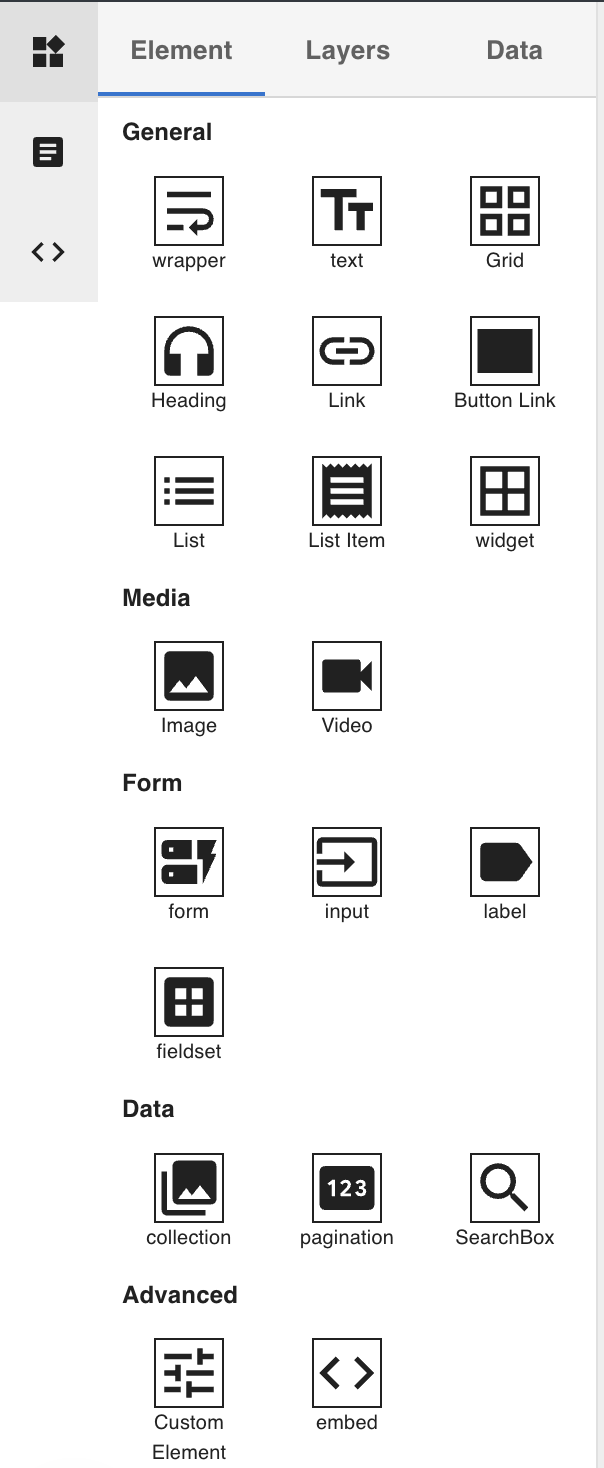
After a node is placed, select it on the canvas to configure it in the Right Form Panel — use the Settings, Styles, Animation, and other tabs depending on the node type.
Viewing the Node Tree
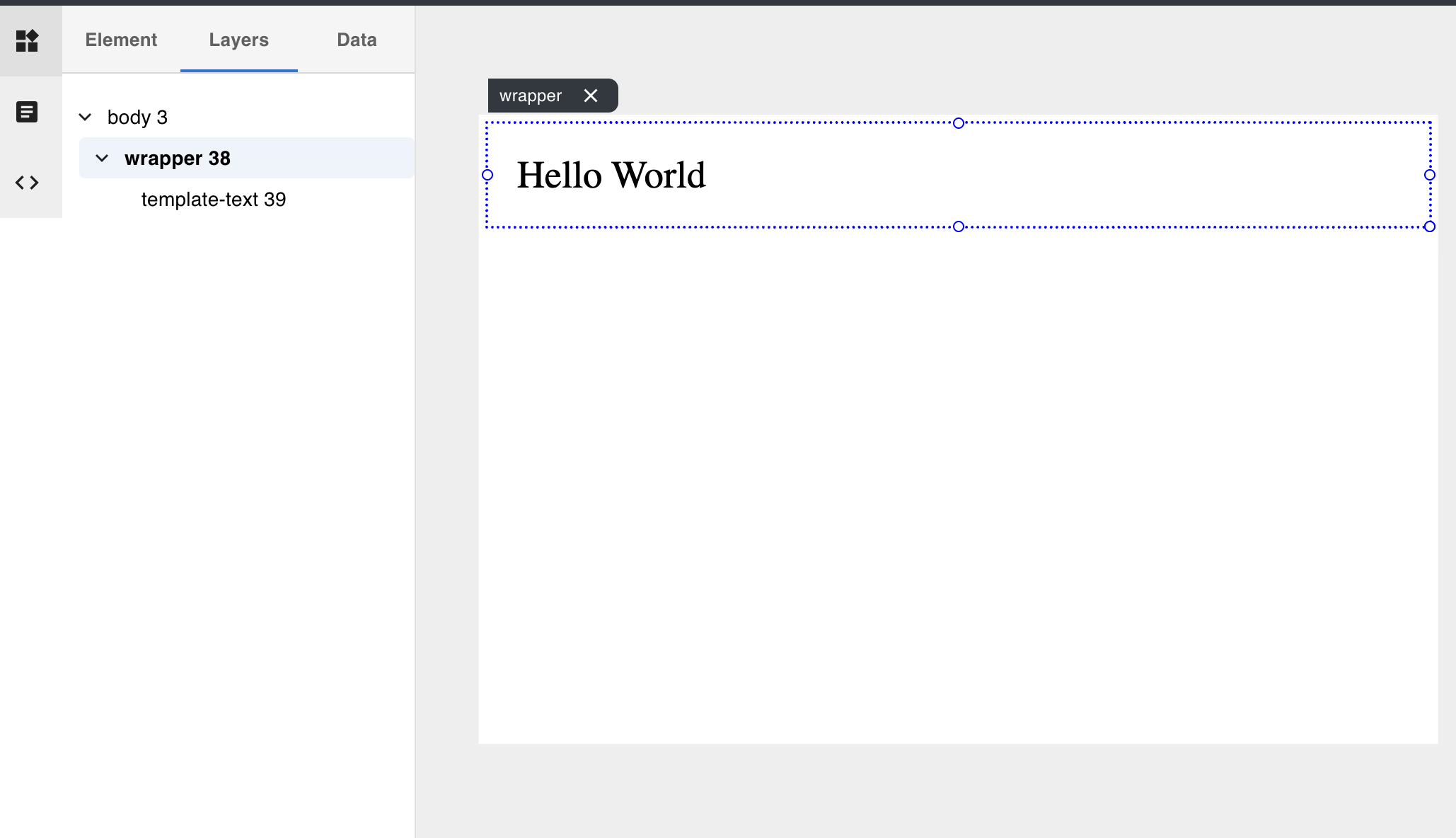
The Layers tab in the Left Nav shows the full node tree for the current template. Use it to navigate to deeply nested nodes, reorder elements, and understand the hierarchy at a glance.