Working with Dynamic Data
Dynamic data connects template elements to live WordPress database content — posts, pages, users, taxonomies, options, and more. Instead of hardcoding text and values, you define what data to fetch, then bind specific fields to elements so the page renders with real content at request time.
There are four main components:
- Defining / managing data — create named data definitions that describe what to fetch
- Displaying data — bind data fields to elements (text content, links, attributes)
- Dynamic Attributes — conditionally show/hide elements or apply classes/attributes based on data values
- Path and Query Mapping — drive data queries from URL path segments or query parameters
Defining and Managing Data
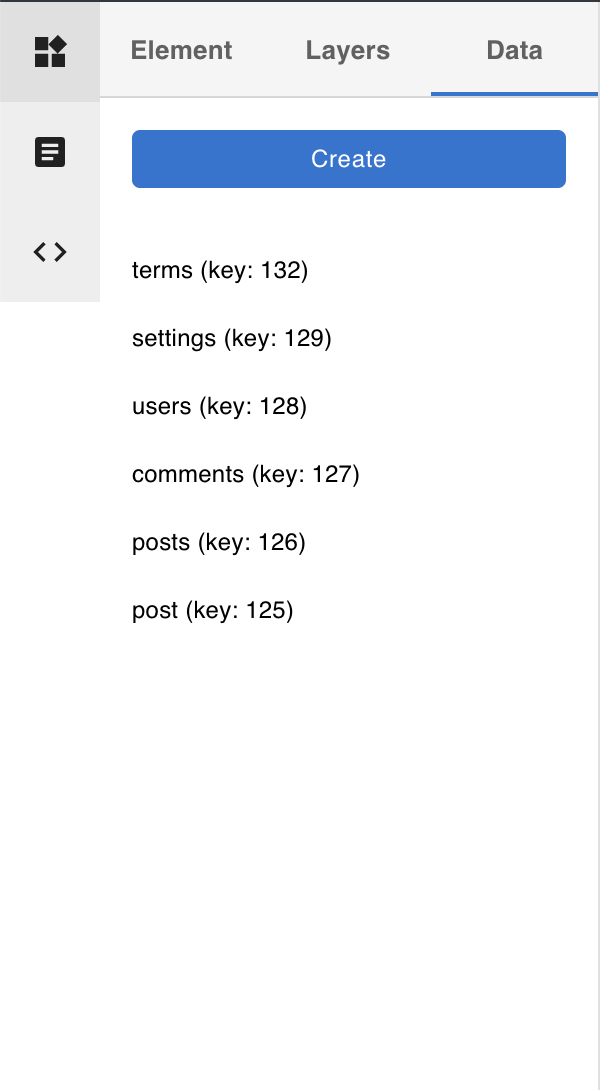
Data is defined and managed in the Data tab within the Elements panel in the left nav.
Data types
Data definitions come in two shapes:
- Single Object — returns one record (similar to a REST API
GET /resource/:id). Consumed directly by text nodes, heading content, button labels, link URLs, and page meta fields. - Array — returns a list of records (similar to REST API
GET /resource). Bound to a Collection node, which iterates the list and passes each item as a single object to child elements. All array types also expose a Pagination object (current page, limit, total pages, total count) as a single object.
Creating a data definition
Click Create in the Data tab to open the data creation modal.
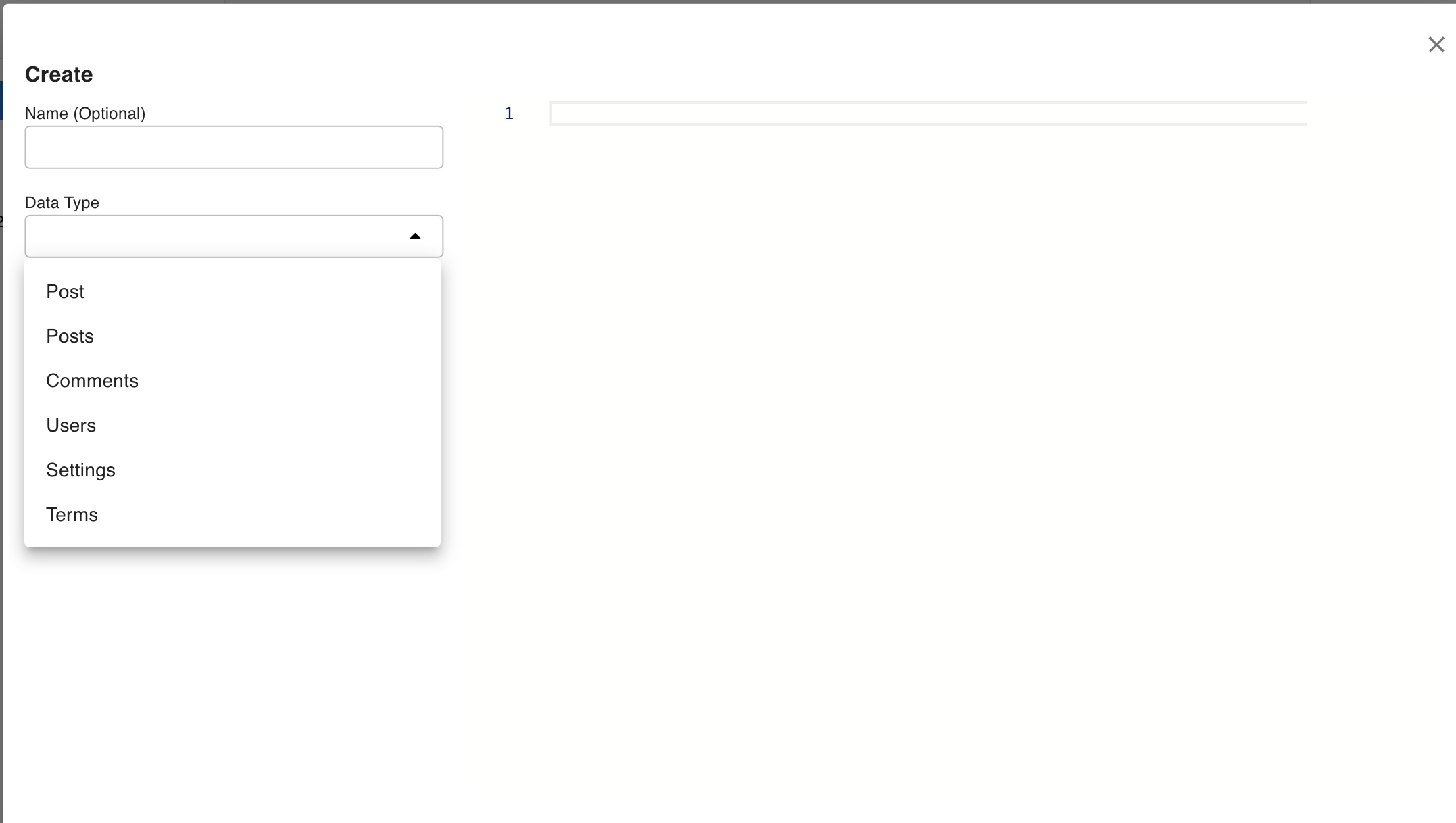
Step 1 — Name and data type
- Name (optional) — a label used to reference this data elsewhere (e.g.
post,posts). If left blank, one is assigned automatically. The name is how you reference the data in binding expressions like${post.post_title}. - Data Type — which WordPress data to fetch. Types ending in
s(e.g.Posts,Users) return arrays; singular types (e.g.Post,User) return single objects.
Step 2 — Parameters
Set the query parameters for the data type — for example, a specific Post ID, a search term, or a taxonomy filter. Once you click Create (or Apply when updating), the result is shown in the right panel as JSON so you can verify the data is correct.
Allowed Query Passthrough Keys
At the bottom of Step 2 is the Allowed Query Passthrough Keys section. These checkboxes control which query parameters can be overridden via URL path segments or query strings.
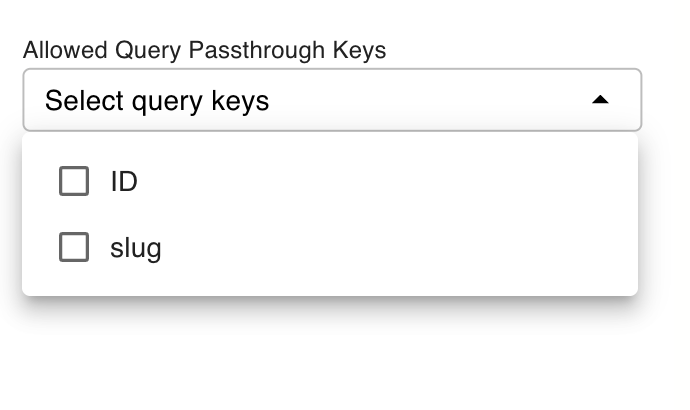
For example: if you are building a post detail page at /post/[slug] and want the slug key to be driven by the URL, check slug here. Keys that are not checked are always resolved by the fixed value set in Step 2 and cannot be overridden by URL parameters.
After checking the keys you need, configure the mapping in Path and Query Parameter Mapping.
Displaying Data
Single Object
A single object contains one record. When a data definition is available for a component that supports text/value binding (Template Text Content, heading, button label, link URL, page meta), a { } icon appears.
Clicking { } opens a dropdown listing the available fields from the data object. Selecting a field inserts a binding expression:
${post.post_title}
This expression means: read the data definition named post, and from it retrieve the post_title field.
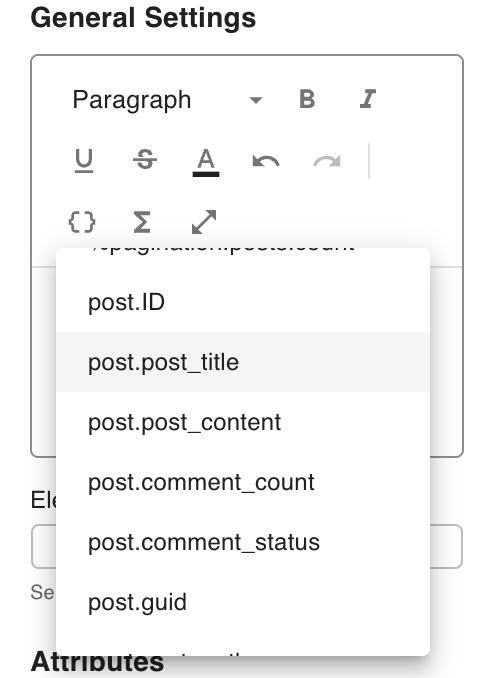
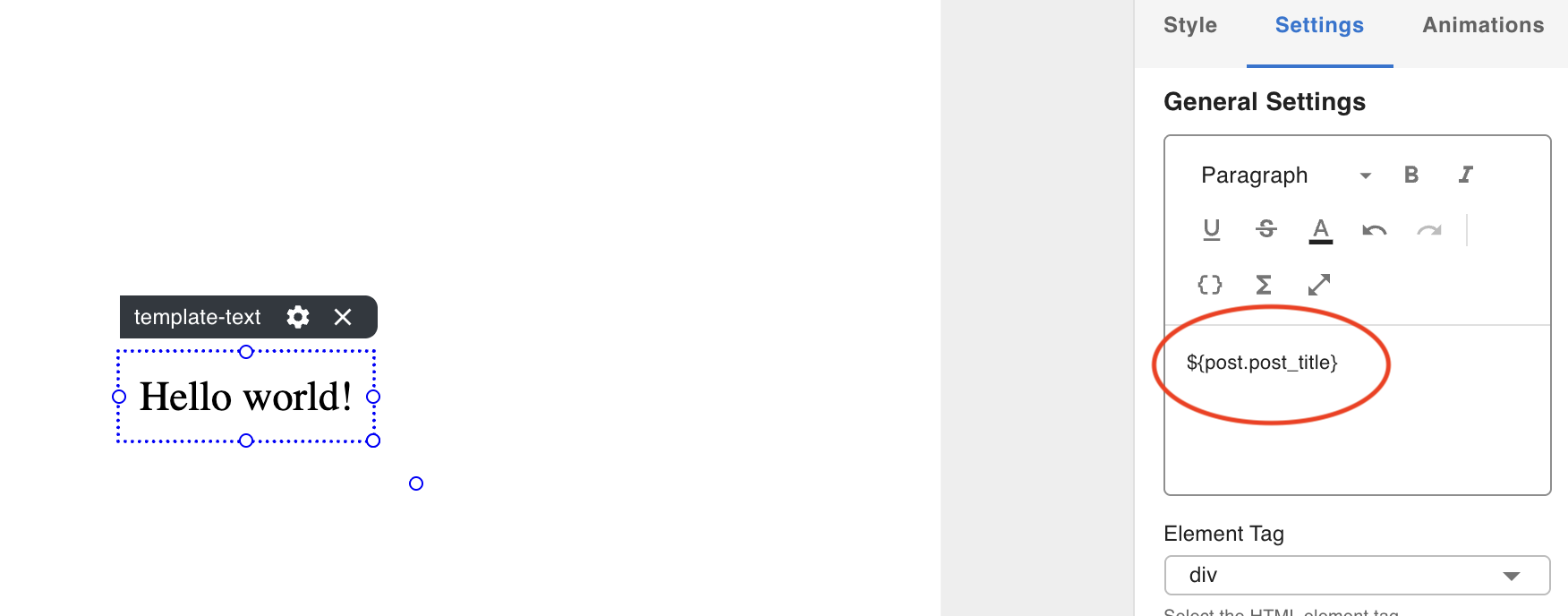
Example of a single Post object:
{
    "ID": 1,
    "post_title": "Hello world!",
    "post_content": "\n<p>Welcome to WordPress.</p>\n",
    "post_date": "2026-04-07T20:30:50.000Z",
    "post_name": "hello-world",
    "post_type": "post",
    "post_status": "publish",
    "categories": [
        {
            "term_id": 1,
            "name": "Uncategorized",
            "slug": "uncategorized"
        }
    ]
}
Transforming data with pipe functions
For Template Text content, a Σ (sigma) icon provides data transformation options. This is useful when the raw field value needs reformatting before display — for example, converting a raw date string to a human-readable format.
Click Σ, select a transform function (e.g. formatDate), and it appends the transformation to the binding expression:
${post.post_date|formatDate:{"format":"YYYY-MM-DD"}}
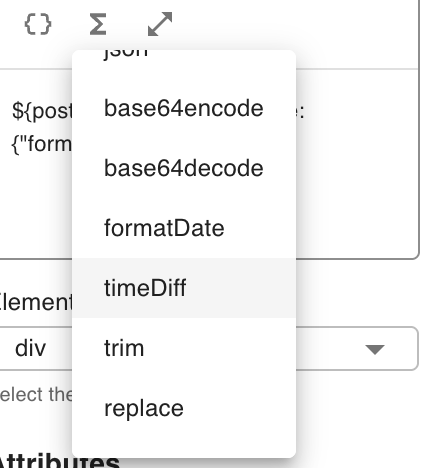
This produces output like 04/07/2026 rather than the raw ISO timestamp.
Array
An array data type returns a list of records. To display array data, add a Collection node to the canvas — it is designed specifically to iterate over an array and render its children for each item.
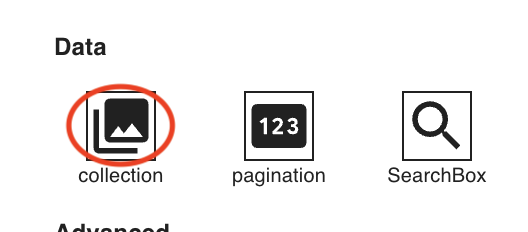
Once a Collection node is on the canvas, select it and open the Settings tab in the right panel. Choose your array data definition from the Target Data dropdown.
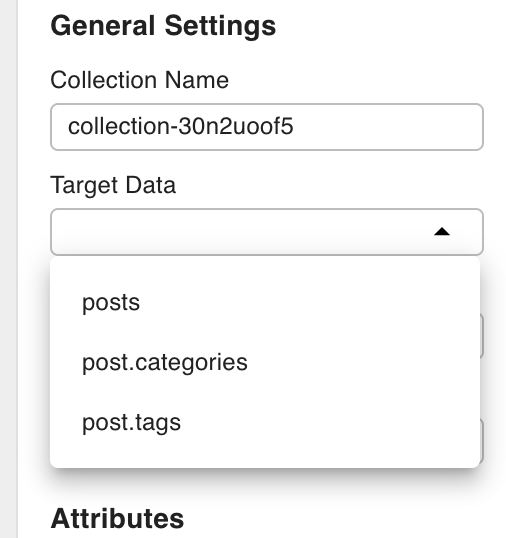
Some sub-arrays within a result (e.g. posts.categories) are also automatically detected and can be selected as a target.
Item Name
The Item Name field in the Collection's Settings tab is the variable name used to reference each individual item within the collection's children. It determines how child nodes refer to the current iteration's record.
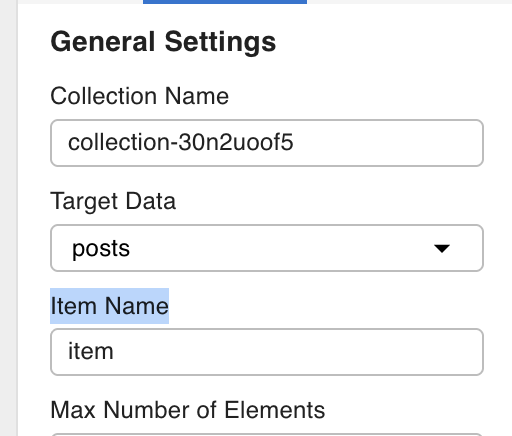
For example, if the collection is bound to a posts array data definition and Item Name is set to item, child nodes can access fields like item.ID and item.post_title:
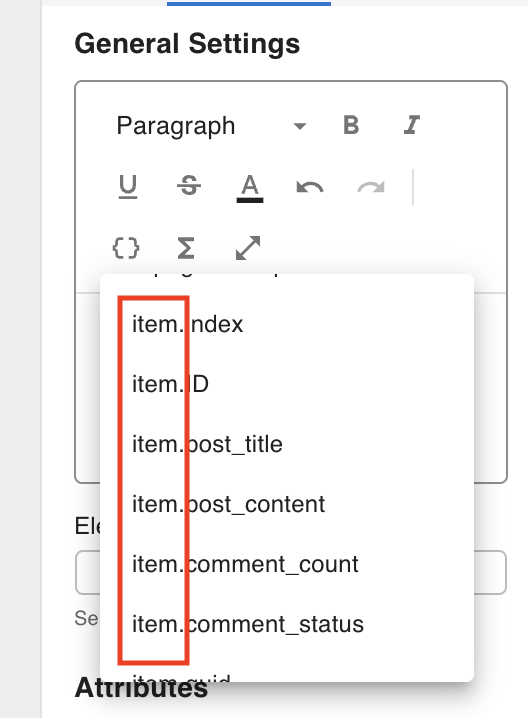
Example of an array data result:
[
    {
        "index": 1,
        "ID": 1,
        "post_title": "Hello world!"
    },
    {
        "index": 2,
        "ID": 51,
        "post_title": "Multi-channelled cohesive methodology"
    }
]
The Collection iterates this list, and for each item passes item.ID, item.post_title, etc. to its child nodes as a single object. See Collection Node for pagination configuration and full details.
Dynamic Attributes
Dynamic Attributes let you conditionally modify elements based on data values — without custom JavaScript. They are configured in the Settings tab of the right panel (available on most nodes).
Rules can:
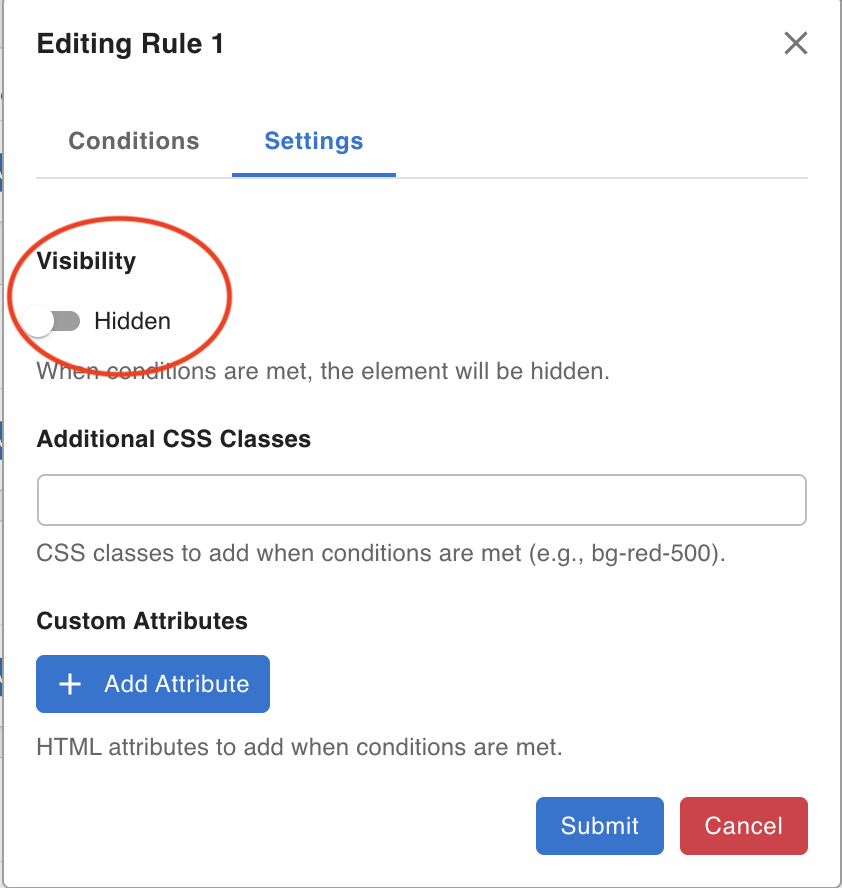
- Toggle visibility — show or hide the node based on a data condition
- Add HTML attributes — inject arbitrary
data-*or ARIA attributes - Add CSS classes — apply additional class names conditionally
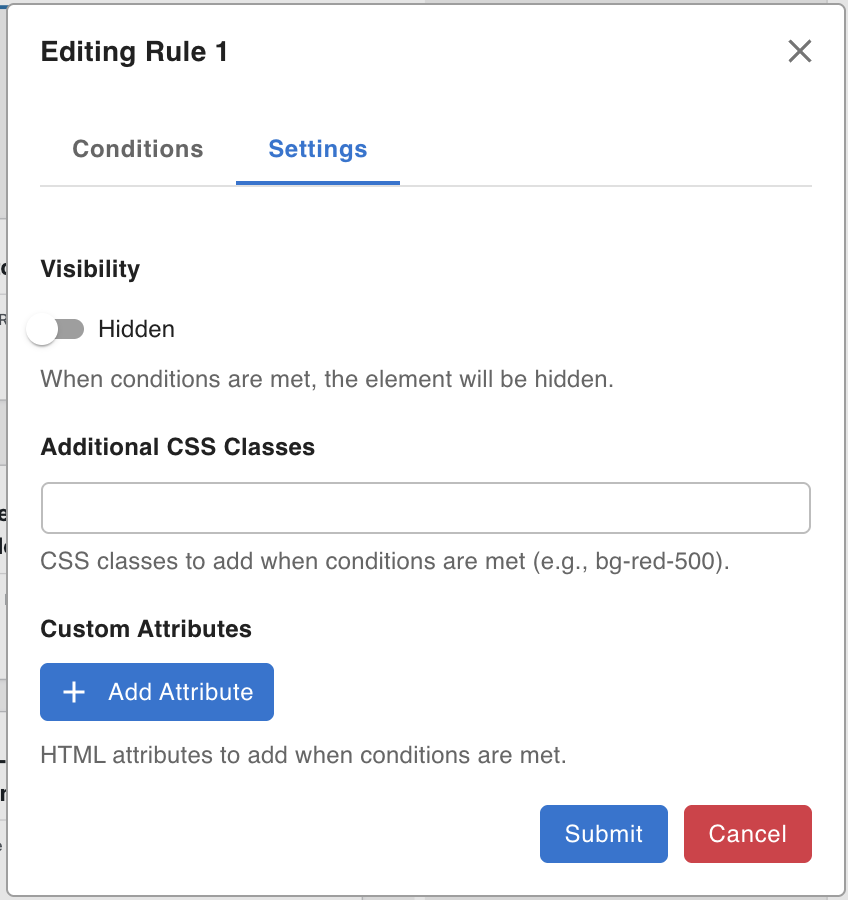
Dynamic Attributes consume Single Object data — each rule evaluates a field from a single object against a condition.
Example: "No results" state
A common use case is showing a "No search results" message only when a data query returns no items:
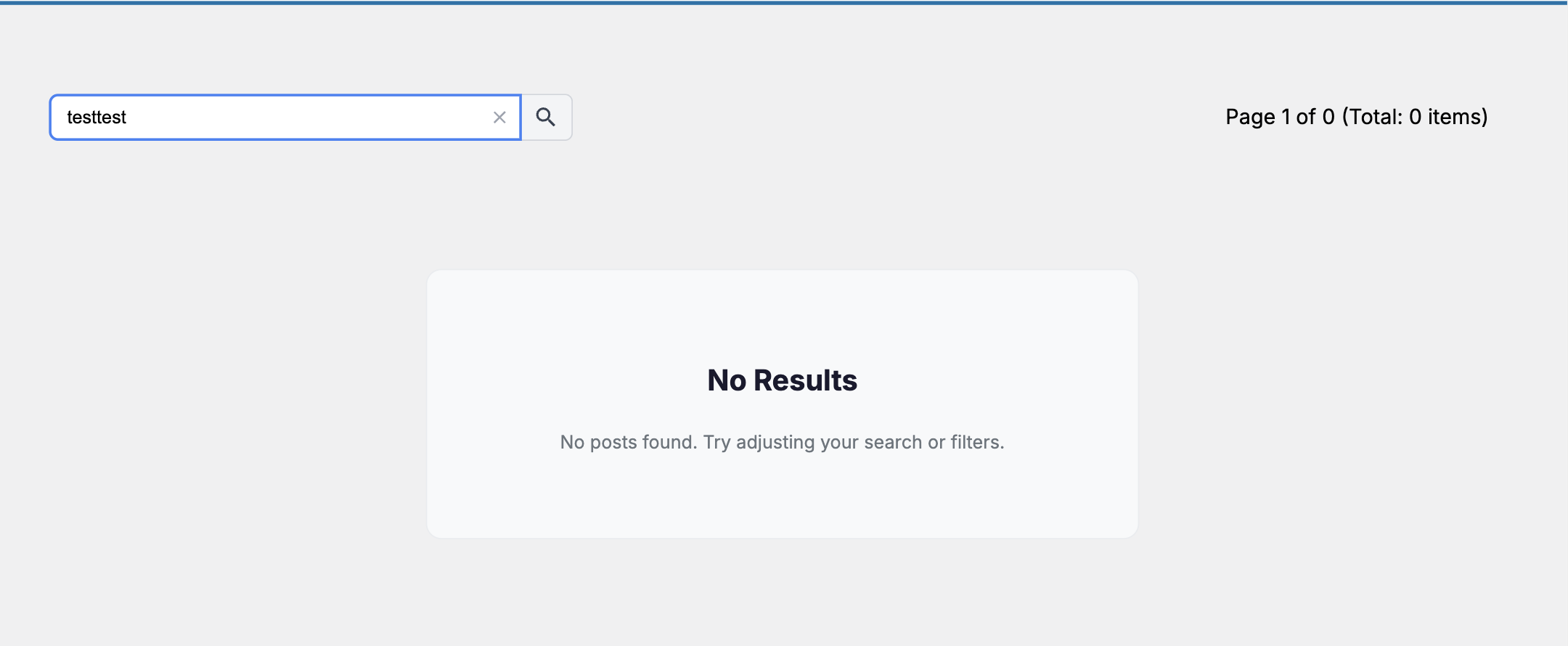
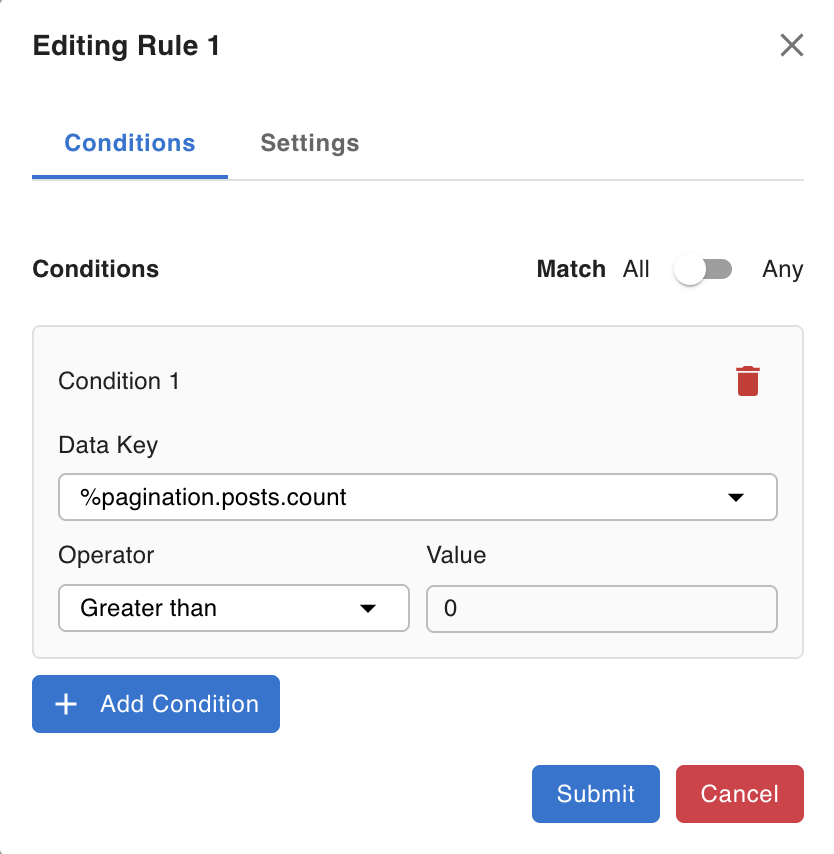
Configure a rule that checks the Pagination count field of the posts array — when count > 0, hide the "No results" element.
Path and Query Parameter Mapping
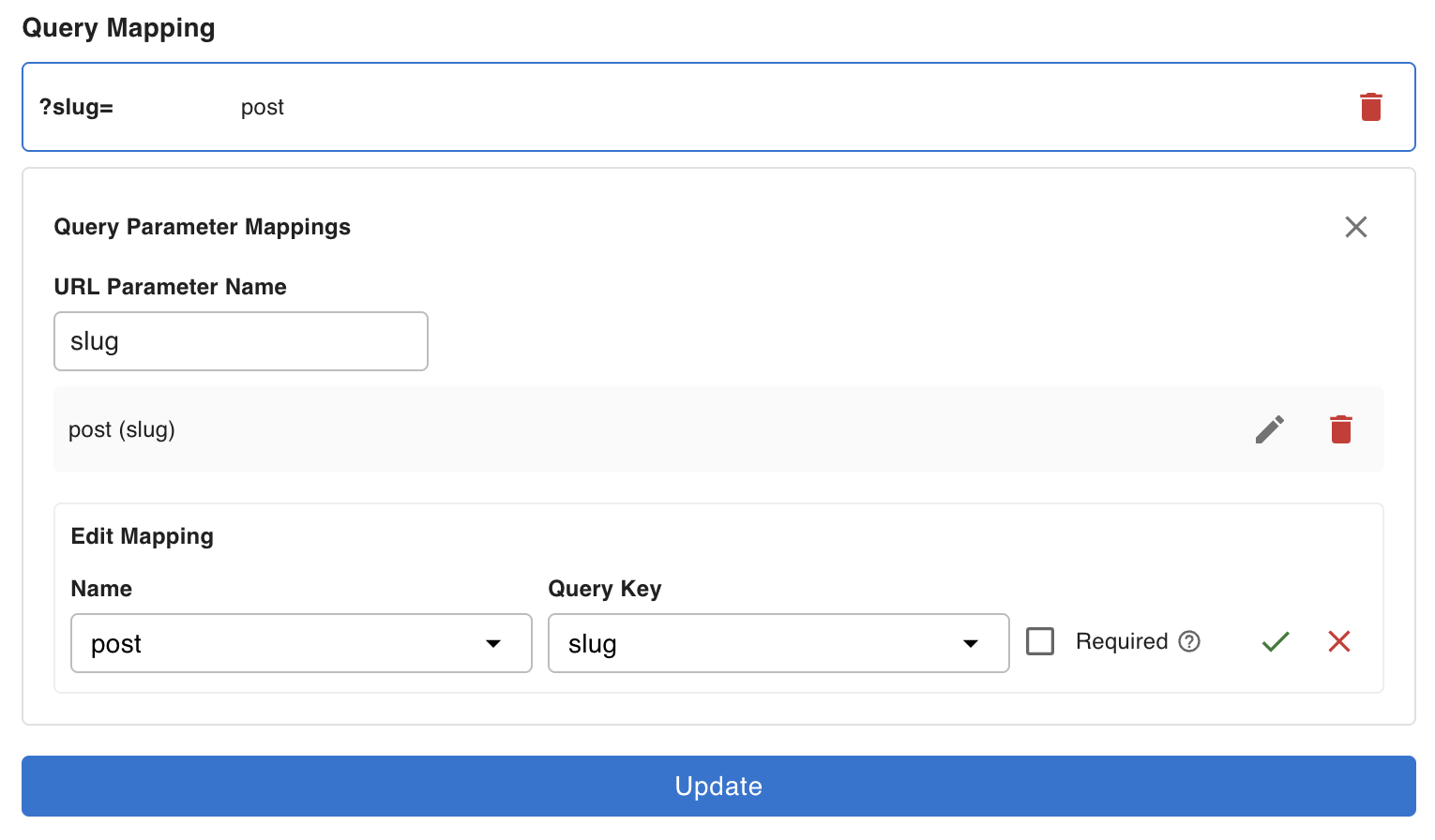
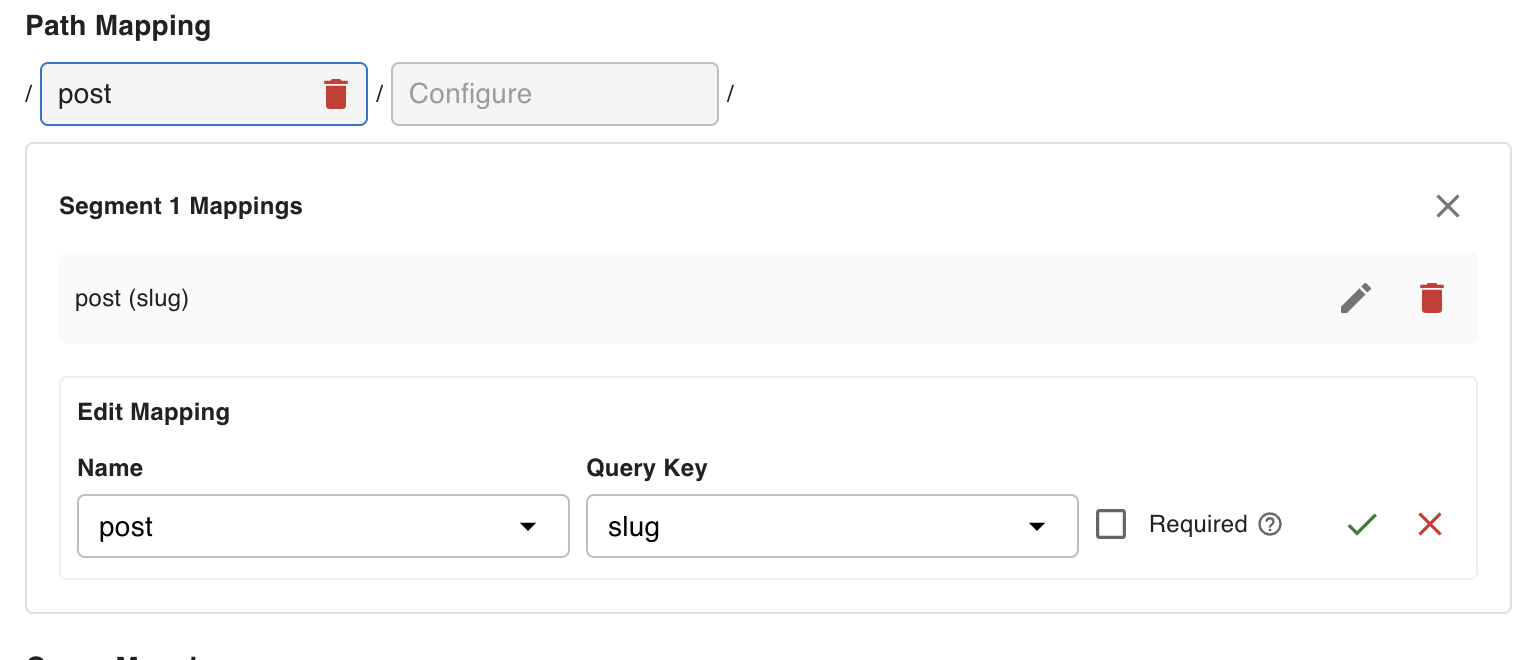
Path and Query Parameter Mapping connects URL segments and query strings to data query parameters. This is what makes dynamic pages work — for example, a post detail page at /post/my-post-slug where my-post-slug drives the slug parameter on a Post data definition.
Prerequisites: The data keys you want to map must be checked in the Allowed Query Passthrough Keys section of the data definition (see Creating a data definition).
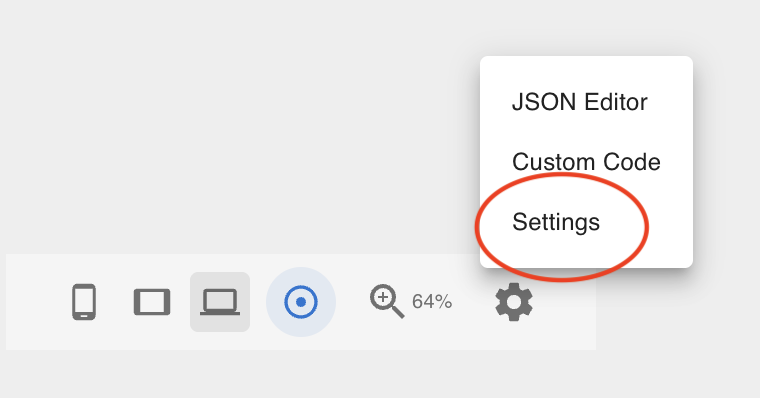
Open Template Settings via the gear icon in the Footer Toolbar.
Path Mapping
Path mapping links a URL path segment to a data key. For a URL like http://localhost/post/[slug], map the second path segment to the slug key of your Post data definition so the page fetches the post whose post_name matches the URL slug.
Query Parameter Mapping
Query parameter mapping works the same way but reads from the URL query string instead of the path. For a URL like ?search=term, map search to the appropriate key on your data definition.