Template Text Node
The Template Text Node is the base text node in the WP Next Editor. It extends Lexical's built-in TextNode with one key addition: support for ${} syntax that resolves dynamic data at render time.
When the editor renders a Template Text Node, any ${...} expressions in the text content are replaced with live values fetched from the WordPress database (posts, users, taxonomies, options, etc.).
Other nodes in the editor extend Template Text Node to inherit this capability. For example, the ImageNode uses it so that image URLs can be set dynamically via ${} syntax rather than being hard-coded.
Text Editor
Each Template Text Node has an inline text editor. You can open it in two ways:
- Select the node and click the Settings tab in the Right Form Panel, then expand the text editor section.
- Click the settings icon in the node toolbar that appears when the node is selected on the canvas.
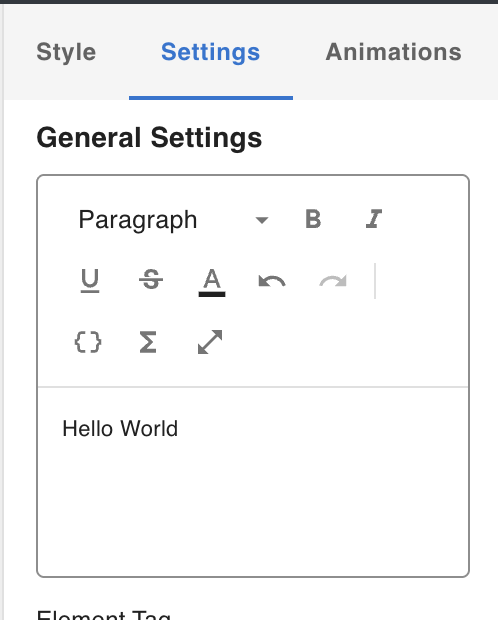
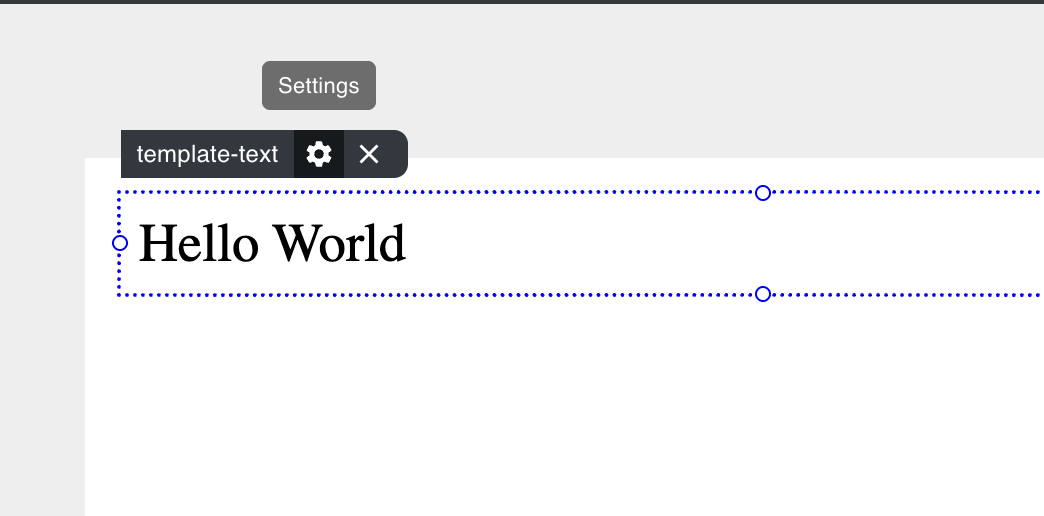
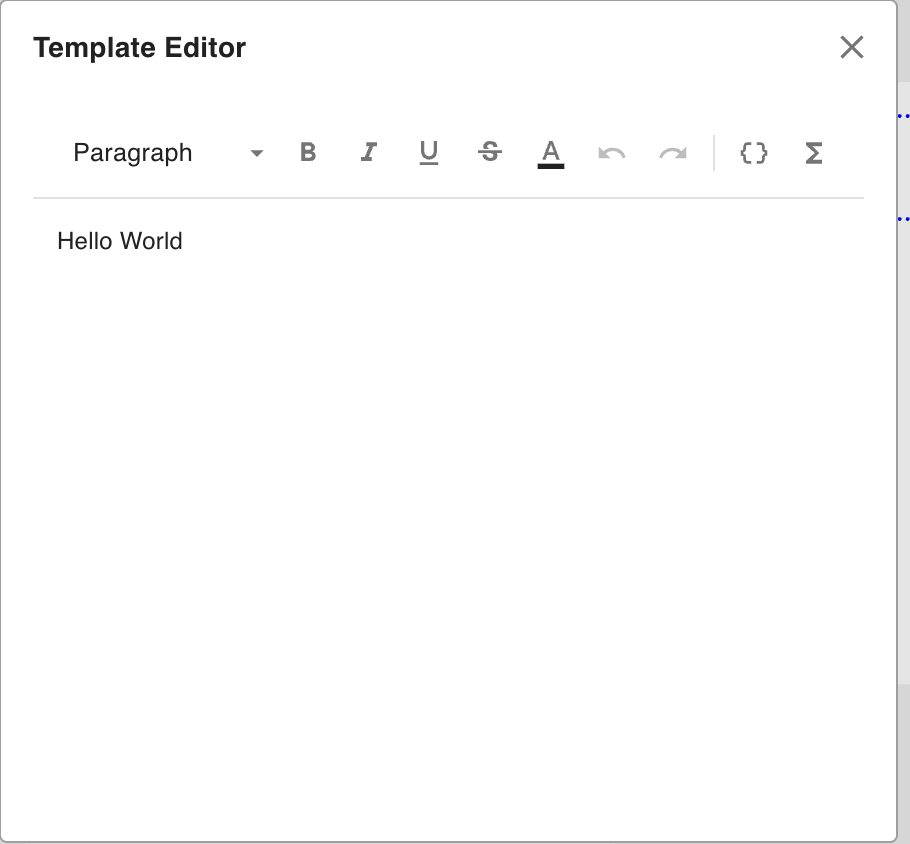
The text editor opens as a draggable overlay so you can reposition it while keeping the canvas in view.
Dynamic Data Syntax
When a Data Fetching Node is present and data has been fetched, two additional icons appear in the text editor toolbar:
{ }— Opens a dropdown listing the available dynamic data fields. Selecting a field inserts the corresponding${...}expression into the text.Σ— Appends a pipe (|) and a transform function after a dynamic expression. Transforms let you format or convert a raw value before it is rendered.
For example, to display a post's publish date formatted as YYYY-MM-DD:
${post.post_date|formatDate:{"format":"YYYY-MM-DD"}}
The part before | is the data reference (post.post_date); the part after is the transform (formatDate with its options as JSON).
See Working with Dynamic Data for the full list of available data fields and transforms.