Hiding Elements
The editor provides three independent hide controls that let you temporarily suppress parts of a node's visual output while editing. All three are editor-only — they are stored as ephemeral client-side state and never written to the template JSON or the database. Nothing you toggle here affects the published page.
The typical use case is debugging: a node may have a display: none dynamic attribute rule that hides it on the canvas, making it impossible to select and restyle. Toggling the hide controls lets you bring it back into view without modifying the template itself.
1. Hide node (Layers panel)
Location: Left Nav → Layers tab (Element tab) — hover over any node row to reveal the toggle.
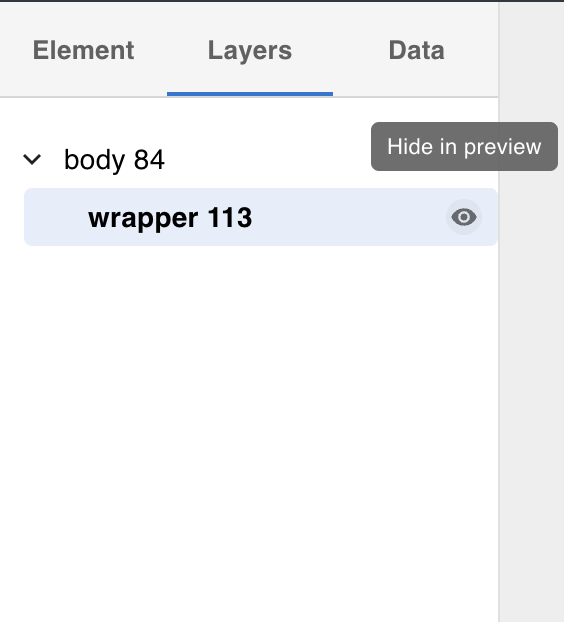
Clicking the toggle applies display: none to the node in the canvas preview. The node's label is dimmed in the tree to make its hidden state visible at a glance. Hidden nodes are also excluded from drag-and-drop reordering.
Click the toggle again (or the eye icon that replaces it) to restore the node to its normal rendered state.
When to use: A node is hidden by a dynamic rule or CSS and you need to select and style it — toggling here makes it visible on the canvas without touching any rules.
2. Disable additional class names (Styles tab)
Location: Right Form Panel → Styles tab → Additional Class Names field.
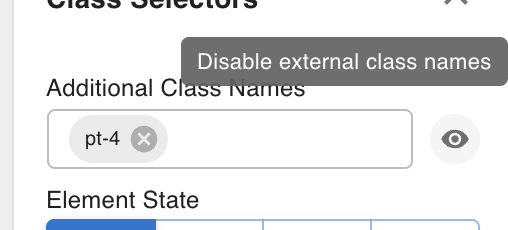
The toggle next to the Additional Class Names input disables all external class names (e.g. Tailwind classes) for this node in the preview. The classes remain saved in the template — they are simply not applied to the DOM while the toggle is on.
When to use: A node's Tailwind or custom CSS classes are making it hard to see how its base styles look — disabling them lets you inspect or adjust the node's built-in styles without deleting the class names.
3. Disable dynamic attribute rules (Settings tab)
Location: Right Form Panel → Settings tab → Dynamic Attributes section.
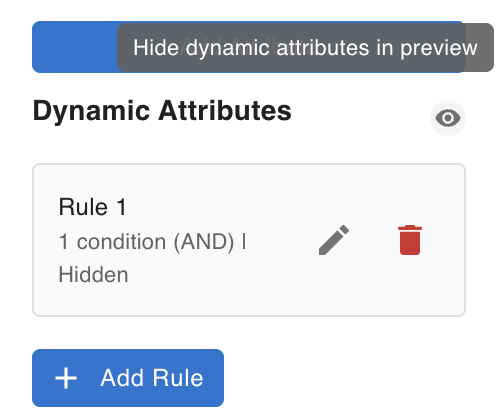
Dynamic attributes can apply conditional class names, custom HTML attributes, or display: none rules based on data conditions (e.g. "hide this element when the collection has no results"). The disable toggle suspends all rule evaluation for this node, so it renders with its base appearance regardless of what the conditions resolve to.
When to use: A node is hidden or restyled by a dynamic rule and you want to see or edit its base state — disabling the rules lets you work on the node directly without removing or rewriting them.
See Dynamic Data for how dynamic attribute rules are configured.