CSS Variables
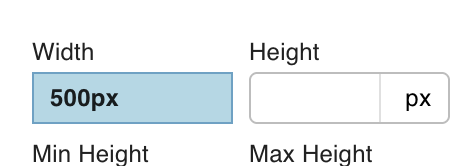
CSS Variables let you define named, typed CSS custom properties and assign them to node styles across your template. Instead of hardcoding a value like 500px into a node's width, you bind a variable — then change the width in one place and every node that references it updates automatically.
Under the hood, each variable is emitted as a @property declaration and referenced with var():
@property --wpn-demo-collection-width {
  syntax: "<length>";
  inherits: true;
  initial-value: 500px;
}
width: var(--wpn-demo-collection-width);
See the MDN @property reference for details on how CSS custom properties work.
Assigning a CSS Variable to a Property
When editing a node's styles in the Styles tab of the Right Form Panel, hover over any CSS property input. If that property supports CSS variables, a CSS Variable badge appears in the top-right corner of the input.
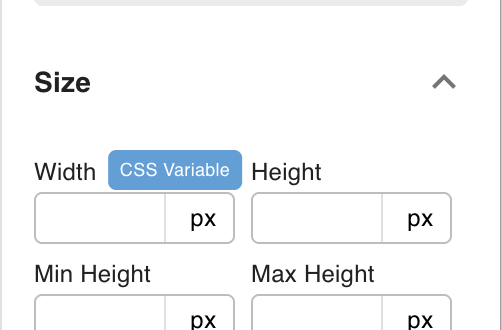
Click the badge to open a variable picker for that property. From there you can select an existing variable or open the management modal.
Managing CSS Variables
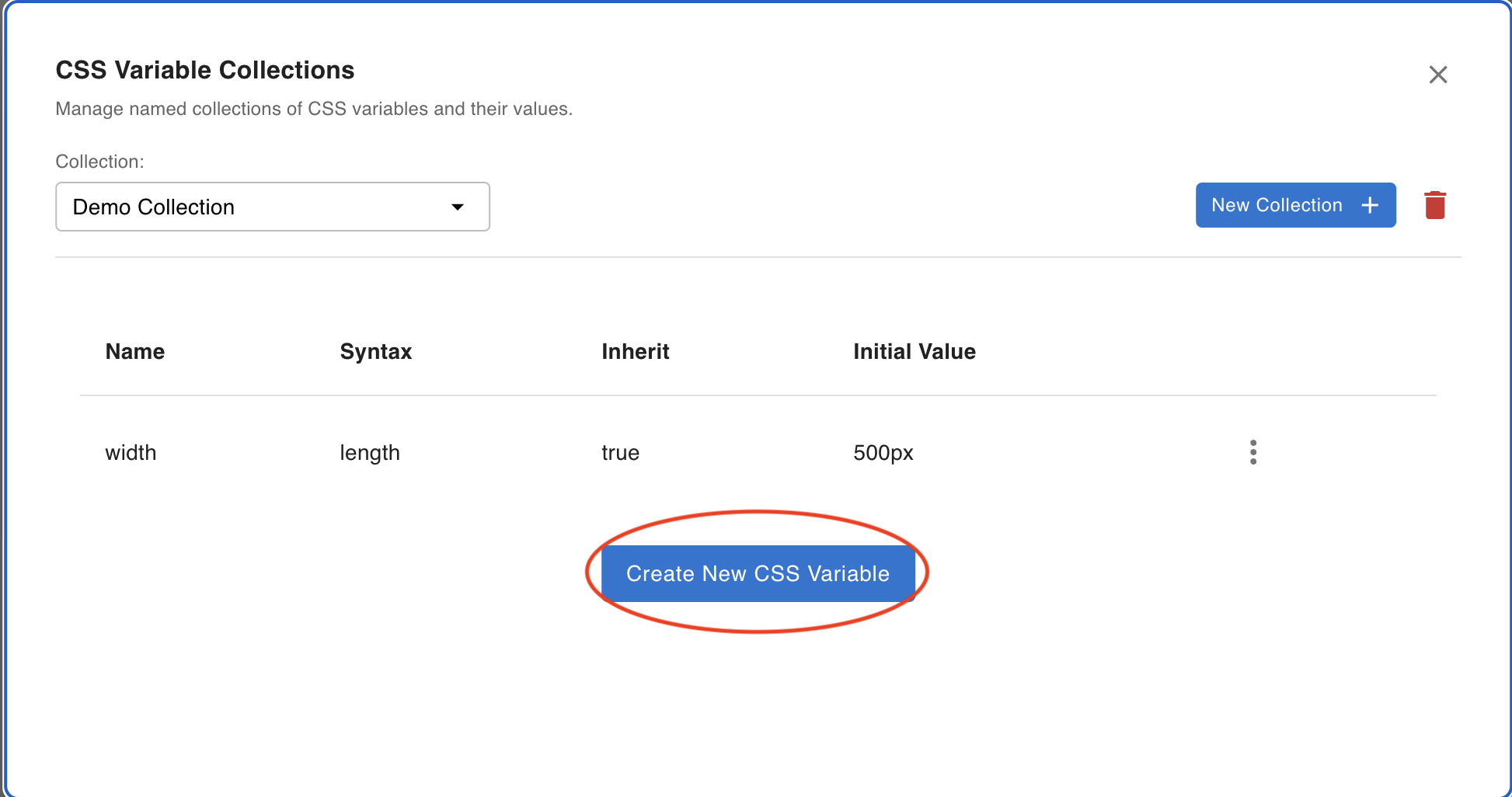
Click CSS Variable badge → Manage CSS Variables to open the management modal. This is where you create and organize all CSS variables for the template.
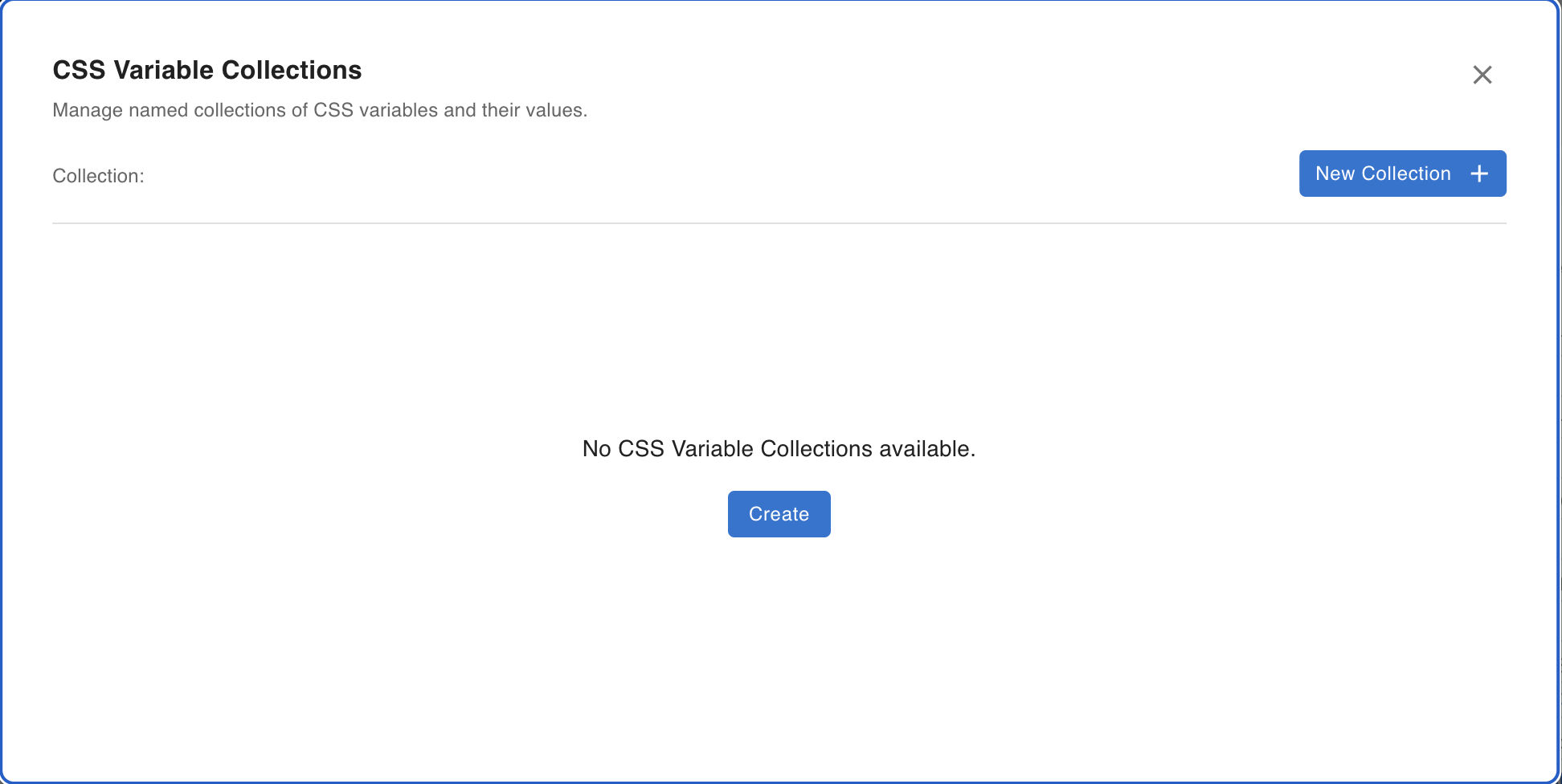
Variables are organized into collections. A collection is a named group of CSS variables — its name becomes part of the final CSS property name.
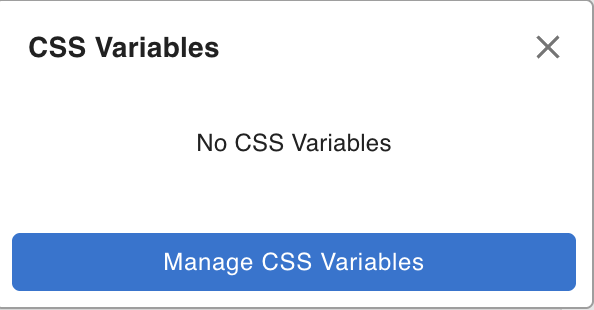
A draggable picker box also appears, which lists available variables for quick assignment.
Creating a Collection
Click New Collection in the modal and enter a name.
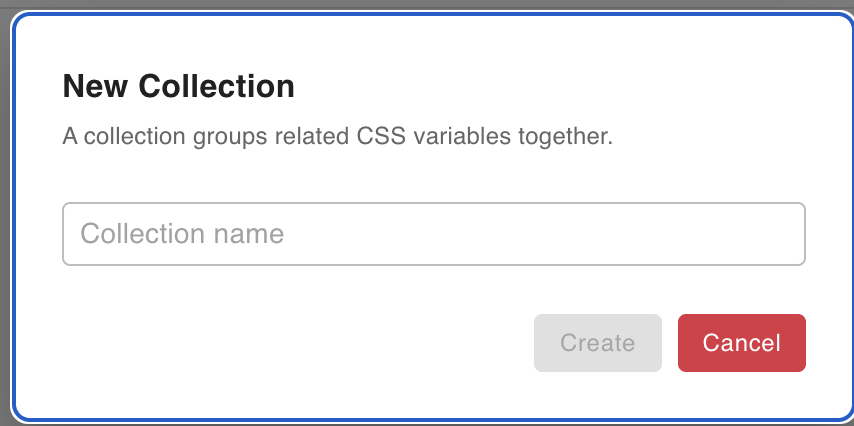
The collection name is incorporated into every variable's CSS property name. For example, a collection named Demo Collection produces property names like --wpn-demo-collection-width. Variables with the same name in different collections get distinct property names.
Defining Variables
With a collection selected, click Create New Variables in the modal and fill in the name and syntax type.
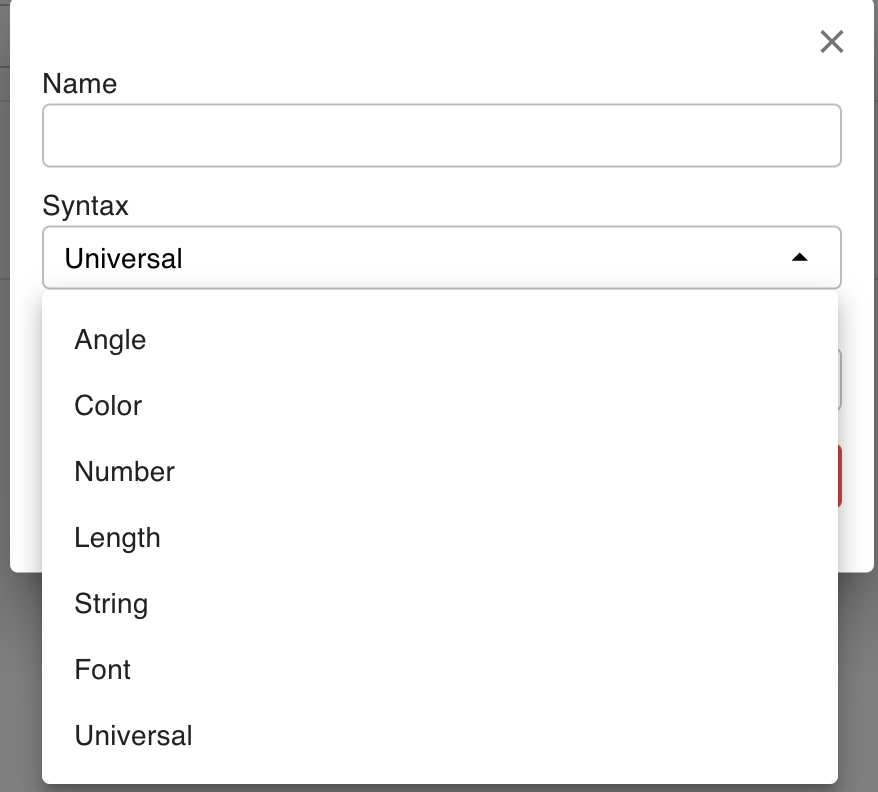
Syntax types
Syntax determines the accepted value type for the @property declaration. See the MDN @property syntax reference.
| Syntax | CSS type | Example value |
|---|---|---|
| Angle | <angle> | 45deg |
| Color | <color> | #ff0000 |
| Number | <number> | 1.5 |
| Length | <length> | 100px, 2rem |
| String | <string> | "hello" |
| Font | <custom-ident> | Font family name |
| Universal | * | Any value |
Note: Match syntax to the CSS property you plan to assign. For example,
widthacceptsLengthbut notString. Use Universal when the property accepts mixed or non-standard values.
Selecting a Variable
After creating variables, they appear in the draggable picker box. Click any variable to assign it to the currently focused CSS property.
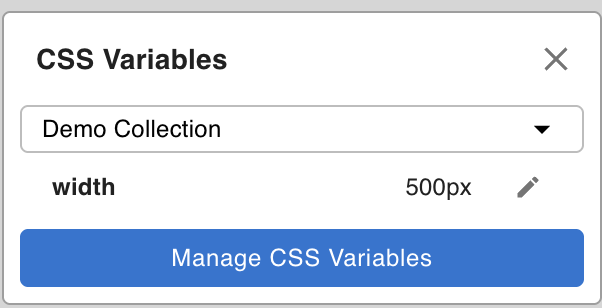
Once assigned, the property input shows the variable reference instead of a raw value.